


It is now time to re-register your student for the 2026-27 academic year. Re-registration is how you can update your child’s bus requests, contact phone numbers, and more to get ready for next year. This is open to all returning resident students and all approved non-resident students. Re-registration is available to all current kindergarten through 11th grade students only.
Using your SchoolMint account from last year, follow the instructions below. If you have forgotten your password, SchoolMint features a password reset option. If you have questions or issues in accessing SchoolMint, please contact your school for further assistance.
Quick instructions
Re-register each of your returning students by following these steps.
- Log in to SchoolMint and verify you are in the 2026-2027 year (found in the upper right). SchoolMint features a password reset feature if you need it.
- Find the appropriate student card, and click the Add Forms button (or the + button for approved non-resident families).
- The Student Information screen will appear where you will need to confirm basic student information along with your current physical address and district of residence. Approved non-resident students will not see this step as it was completed in the application process. Click the Save and Continue button.
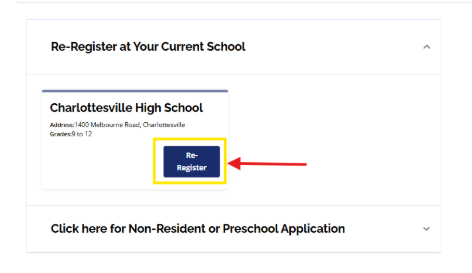
- On the next screen, click the down arrow next to the option of Re-Register at Your Current School, then click the blue Re-Register button to continue.
People are also reading…
Better review of parent, guardian, and emergency contacts
We have transferred over the data currently in PowerSchool for your review, and below each person’s data set, we give an opportunity to update any fields that need to be changed. As a reminder, all parents and guardians are automatically considered emergency contacts. The Additional Contact screen requires at least one other additional person to be added in an emergency in the event a parent or guardian cannot be reached.
1. Log in and select student
Log in to your SchoolMint account and select the student you wish to re-register.
2. Missing a student? Here's how to add them
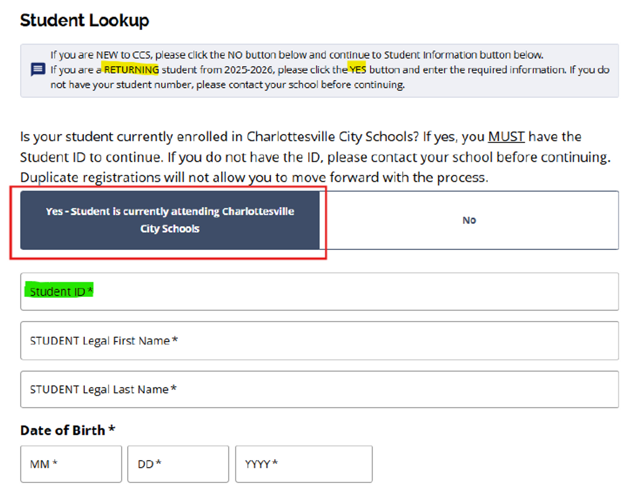
- Where it says Add a Student, click the Get Started button.
- You will need their ID number. You can find the ID number through ParentSquare (select student → dashboard → overview), PowerSchool (select student → Grades/Attendance), or by calling your school.
- Click Yes - Student is currently attending Charlottesville City Schools.
- Enter the student ID, name, and student birthday.
- Continue.
3. Verify Student Information screen
- The Student Information screen will appear where you will need to confirm basic student information along with your current physical address and district of residence. Approved non-resident students will not see this step since it was completed in the application process. Click the Save and Continue button.
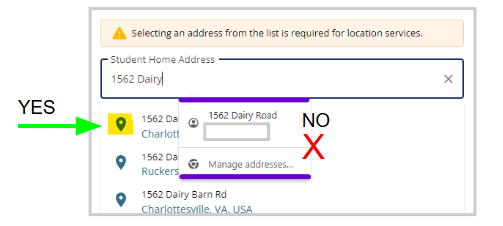
- If you need to add or change the address, begin typing the address and then click on the blue teardrop next to the correct address. Then add any apartment or suite information without a number sign or the word "apt." Do not use your phone's auto-completion tool; click the blue teardrop instead.
- Verify that all elements of the address are correct, then click Save and Continue.
4. Select Re-Register at Your Current School
- Click Re-Register at Your Current School.
- After the school information appears, click the blue Re-Register button to continue. Note: If you are applying for Out of Zone, simply complete this form as-is (do not try to change the school). After your Out of Zone application process is complete, Charlottesville City Schools will adjust the school as needed.
- A Requirements & Policies pop-up box will appear. Read and check I agree.
- Click Continue.
5. Complete all sections of the re-registration form
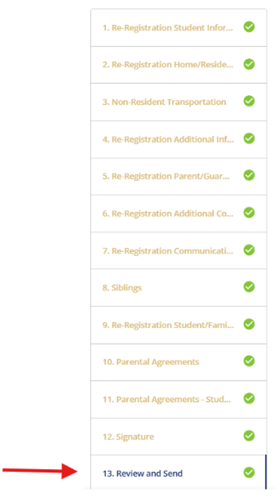
- Click through each section of the re-registration form (there are 12 sections).
- When finished, be sure to Review and Send your re-registration in order to complete the registration process.
- Repeat this process for every returning student in your family.


